Resizing LUKS on LVM

A while ago, I encrypted my home server’s disks using a LUKS on LVM setup. While this setup works great, sometimes you might need to free up some space from an existing encrypted volume to create a new one. Because the storage setup is layered–ext4 on LUKS on LVM–resizing isn’t as simple as it looks.
To achieve this, we have to manipulate the different abstraction layers in the correct order.
To safely shrink an encrypted volume, we use a safety-margin approach:
- We shrink the filesystem to be slightly smaller than our target size
- Shrink the logical volume to our target size
- Expand the filesystem back to our target size
That means: if you want to shrink the volume to 122G, you should shrink the filesystem to 120G first, then shrink the logical volume to 122G, and finally expand the filesystem back to 122G.
1. Preliminaries
Before we dive into the commands, let’s clarify a few concepts to understand why we need to shrink things in a specific order. A key takeaway is that a filesystem is not the same as the underlying logical volume it sits on. It’s important for users who are only familiar with graphical tools to grasp these concepts clearly.
A volume is a way to separate different filesystems on a disk. A filesystem, such as ext4, btrfs, or FAT32, is the data structure written onto that raw space. It governs how the raw bytes on disk are organized and could be interpreted as files or directories.
When you create files on a filesystem, they are not always stored in a simple left-to-right order. Instead, files and directories can be scattered across the disk, sometimes ending up near the end of the filesystem. If you shrink the volume without first shrinking the filesystem, you may cut off part of the filesystem and destroy your data.
To visualize it, think of the filesystem = the library, while the volume = the building. You would not want to just chop off a part of the building without moving the books first.
When you use a graphical tool like GParted or Disk Utility to visually drag and “shrink” a volume, the software is actually doing two things under the hood:
- First, it shrinks the filesystem, safely moving any data away from the end of the volume and compacts the filesystem’s internal structures.
- Second, it shrinks the actual volume boundary (by updating the partition table or volume metadata) to match the new, smaller filesystem size.
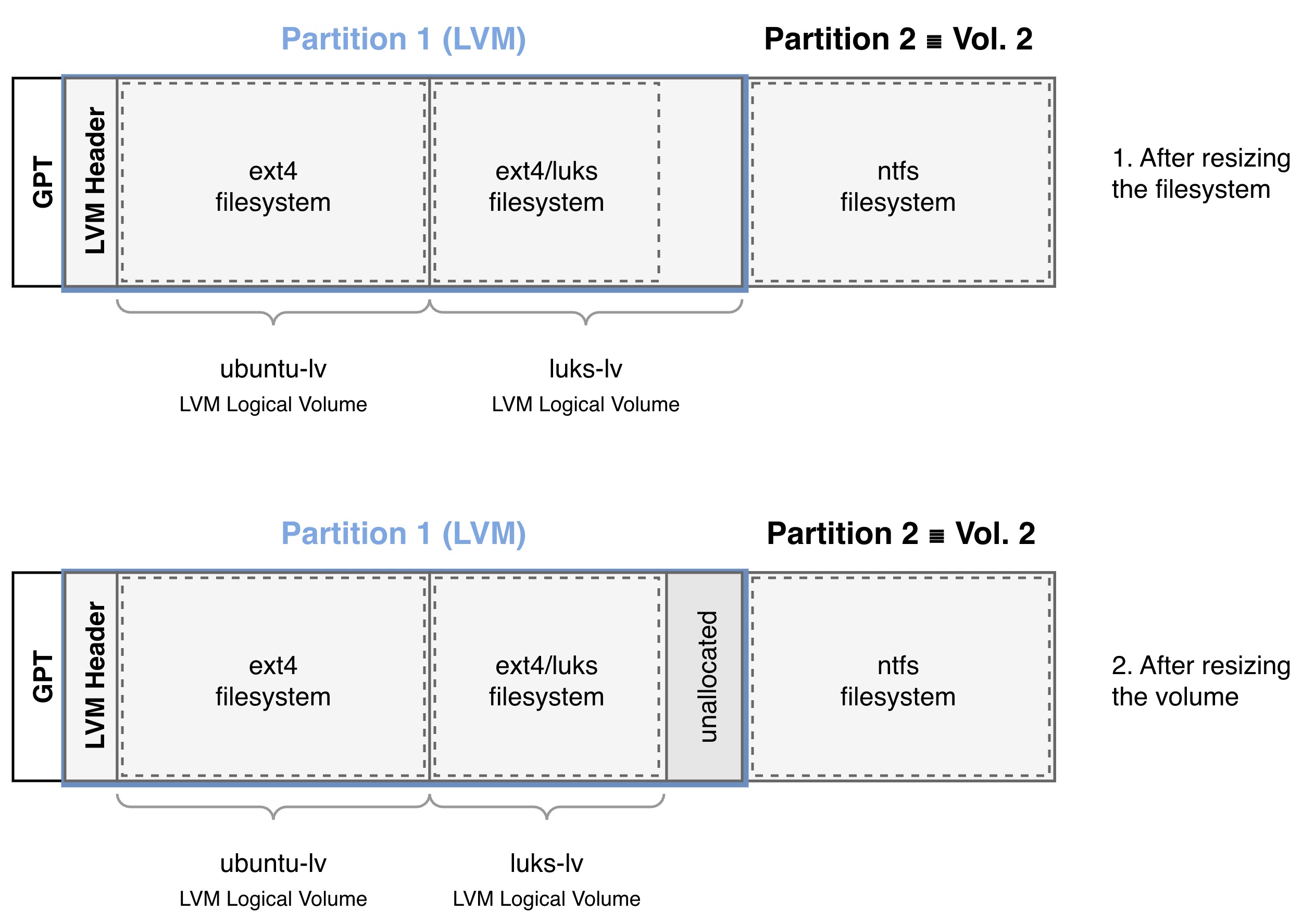
The full flow with LUKS on top of LVM is as follows:
- Open LUKS
- Shrink the filesystem to 120G
- Close LUKS
- Shrink the logical volume to 122G
- Open LUKS
- Expand the filesystem to 122G
2. Inspecting the current layout
Assume we have one volume group ubuntu-vg, and the LUKS logical volume in question is luks-lv.
First, let’s look at the current logical volume setup. We can use lvdisplay to inspect the names of the logical volumes.
|
|
Let’s also inspect the decrypted LUKS view using parted.
|
|
As we can see, the logical volume luks-lv spans about 389 GiB (displayed as 389 GB in base-10), mapped to a LUKS container with an ext4 filesystem. Our goal here is to reduce its size down to around 122 GiB.
2. Shrinking the inner filesystem
Decrypt the LUKS volume to reveal the underlying ext4 filesystem.
|
|
Next, check the filesystem for errors to prevent bad surprises during the resize operation. Make sure the filesystem is not mounted at this stage.
|
|
Next, we shrink the filesystem. Suppose that our target size for the volume is 122G, but we intentionally shrink the filesystem down to 120G to leave a 2 GiB safety margin. This ensures we don’t accidentally cut off the tail end of our files.
|
|
3. Shrinking the logical volume
Now that our inner filesystem is comfortably sitting at 120 GiB, we can safely shrink the underlying physical LVM logical volume to our target of 122G.
|
|
4. Expanding the filesystem back up
The logical volume is now strictly bound at 122 GiB. The LUKS container naturally adapts to this new 122 GiB constraint.
However, our ext4 filesystem inside it is still configured to be only 120 GiB. We can now run resize2fs again, but this time without specifying a size. This tells it to automatically expand and fill up all the available space left in its volume block.
|
|
This final expansion perfectly zeroes in on the exact boundary. We now just need to run one final command before mounting the volume. This will update the “management” size of the LUKS container to match the new volume size.
|
|
Now mount the volume and check the size.
|
|
5. Reclaiming the free space
With luks-lv successfully reduced from 362 GiB to 122 GiB, the remainder of the space has been returned to the ubuntu-vg volume group.
You can finally create a new logical volume (data-lv) utilizing all of that freshly freed up space:
|
|